
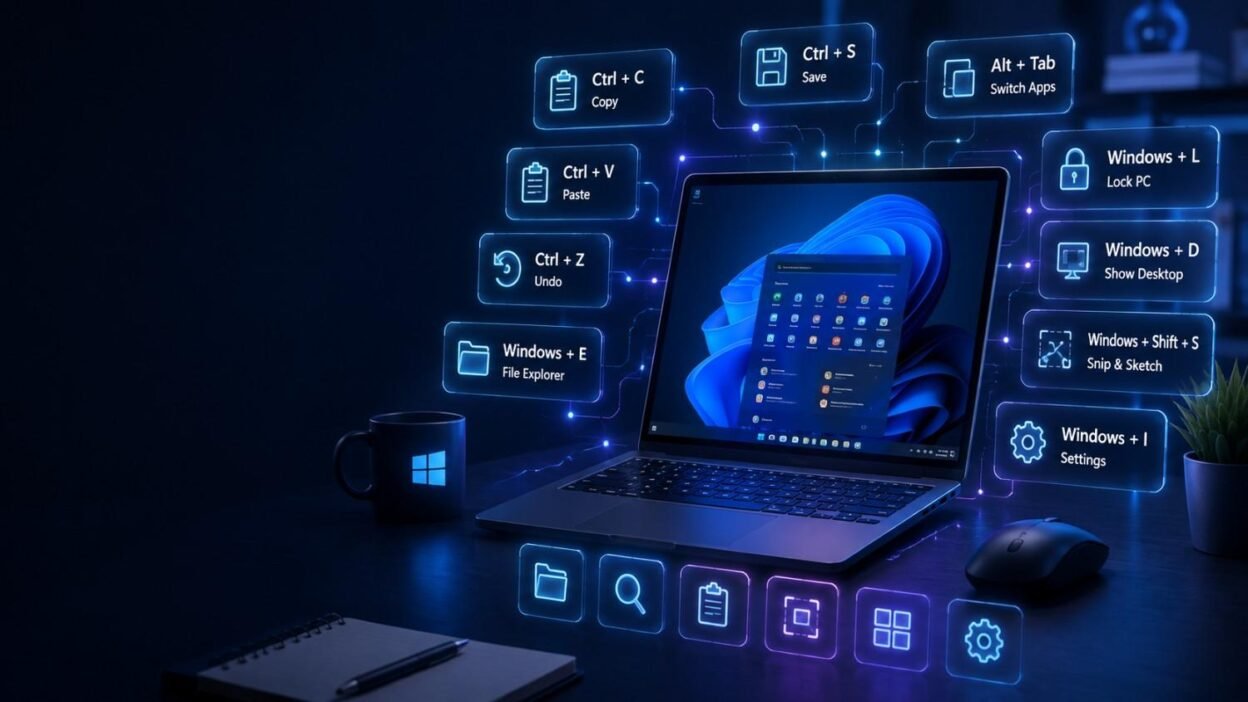
Keyboard shortcuts are one of the easiest ways to work faster on a Windows PC. Instead of navigating through menus, you can perform common tasks instantly with just a few key combinations.
Whether you’re a student, office professional, developer, or casual user, these shortcuts will save time and improve productivity.
General Windows Shortcuts
| Shortcut | Action |
|---|---|
| Ctrl + C | Copy |
| Ctrl + X | Cut |
| Ctrl + V | Paste |
| Ctrl + Z | Undo |
| Ctrl + Y | Redo |
| Ctrl + A | Select All |
| Ctrl + S | Save |
| Ctrl + P | |
| Ctrl + F | Find |
| Ctrl + H | Replace |
File Explorer Shortcuts
| Shortcut | Action |
|---|---|
| Windows + E | Open File Explorer |
| Alt + Up Arrow | Go to Parent Folder |
| Alt + Left Arrow | Back |
| Alt + Right Arrow | Forward |
| F2 | Rename File |
| Delete | Move to Recycle Bin |
| Shift + Delete | Permanently Delete |
| Ctrl + Shift + N | New Folder |
| F5 | Refresh |
Windows System Shortcuts
| Shortcut | Action |
|---|---|
| Windows | Open Start Menu |
| Windows + I | Open Settings |
| Windows + L | Lock Computer |
| Windows + R | Open Run |
| Windows + X | Power User Menu |
| Windows + A | Quick Settings |
| Windows + N | Notification Center |
| Windows + P | Project Display |
| Windows + U | Accessibility Settings |
| Windows + Pause | System Information |
Multitasking Shortcuts
| Shortcut | Action |
|---|---|
| Alt + Tab | Switch Apps |
| Windows + Tab | Task View |
| Windows + D | Show Desktop |
| Windows + M | Minimize All Windows |
| Windows + Shift + M | Restore Minimized Windows |
| Windows + Left | Snap Left |
| Windows + Right | Snap Right |
| Windows + Up | Maximize Window |
| Windows + Down | Minimize Window |
Screenshot Shortcuts
| Shortcut | Action |
|---|---|
| PrtScn | Copy Entire Screen |
| Alt + PrtScn | Active Window Screenshot |
| Windows + Shift + S | Snipping Tool |
| Windows + PrtScn | Save Screenshot Automatically |
Browser Shortcuts
| Shortcut | Action |
|---|---|
| Ctrl + T | New Tab |
| Ctrl + W | Close Tab |
| Ctrl + Shift + T | Reopen Closed Tab |
| Ctrl + Tab | Next Tab |
| Ctrl + Shift + Tab | Previous Tab |
| Ctrl + L | Address Bar |
| Ctrl + D | Bookmark Page |
| Ctrl + J | Downloads |
| Ctrl + Shift + Delete | Clear Browsing Data |
Command Prompt & Terminal
| Shortcut | Action |
|---|---|
| Ctrl + Shift + Enter | Run as Administrator |
| Ctrl + C | Stop Running Command |
| Ctrl + V | Paste |
| Ctrl + L | Clear Screen |
Bonus Productivity Shortcuts
| Shortcut | Action |
|---|---|
| Windows + . | Emoji Panel |
| Windows + V | Clipboard History |
| Windows + Shift + S | Screen Snip |
| Windows + Space | Change Input Language |
| Windows + Ctrl + D | New Virtual Desktop |
| Windows + Ctrl + Left/Right | Switch Virtual Desktop |
| Windows + Ctrl + F4 | Close Virtual Desktop |
Pro Tips
✔ Learn five shortcuts each week instead of trying to memorize them all at once.
✔ Use Windows + V to enable Clipboard History for copying multiple items.
✔ The Windows + Shift + S shortcut is one of the fastest ways to capture screenshots.
✔ Use Alt + Tab frequently to switch between applications without using the mouse.
Mastering Windows keyboard shortcuts is one of the simplest ways to become more productive. Even learning a few of these shortcuts can save time, reduce repetitive mouse movements, and make your daily workflow much more efficient.
Start by learning five shortcuts this week, then gradually add more to your routine. Before long, using them will become second nature.
Which Windows shortcut do you use the most, or did you discover a new favorite from this list? Share your thoughts in the comments below we would love to hear from you!
If you found this guide helpful, don’t forget to bookmark it and share it with friends or colleagues who want to work smarter on Windows.


